
Preferences
Preferences are divided into three tabs:- General — Language, environment, autosave, and Color Key settings.
- Measurements — Units, grid spacing, and snapping settings.
- Rendering — Display and rendering quality settings.
General
The General tab contains settings that control general application behavior.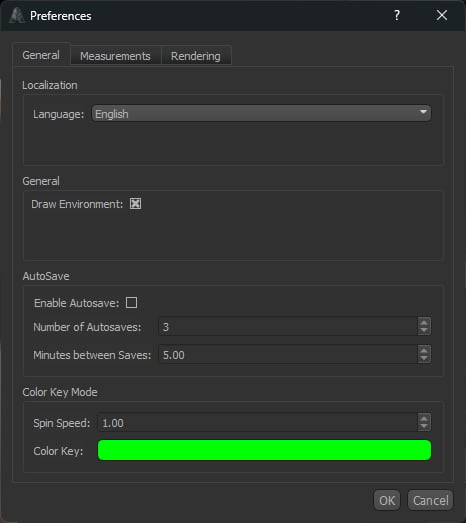
Localization
Language
Language
Selects the language used throughout the Armorsmith Designer interface.A restart may be required for all interface elements to update after changing the language.
General
Draw Environment
Draw Environment
Controls whether the 3D environment surrounding the Work Area is displayed.Disable this option if you prefer a simple background or want to reduce the amount of environment geometry being rendered.
AutoSave
Autosave can periodically save backup copies of your work while you are using Armorsmith Designer.Enable Autosave
Enable Autosave
Enables or disables automatic saving.
Number of Autosaves
Number of Autosaves
Sets the number of autosave files Armorsmith Designer will keep.Older autosaves are replaced as new autosaves are created once this limit is reached.
Minutes Between Saves
Minutes Between Saves
Sets how frequently an autosave is created, measured in minutes.
Color Key Mode
Color Key Mode provides controls for the rotating color key used when viewing your project.Spin Speed
Spin Speed
Controls how quickly the Color Key rotates.
Color Key
Color Key
Sets the color used by the Color Key.
Units & Snapping
The Measurements tab controls the measurement system, grid, and snapping behavior used throughout Armorsmith Designer.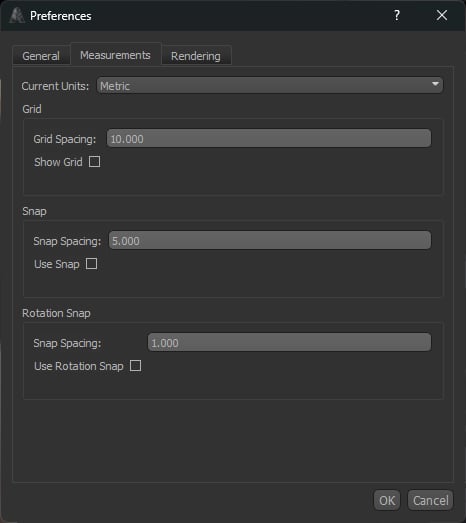
Current Units
Current Units
Current Units
Selects the measurement system used to display dimensions throughout Armorsmith Designer.Changing the current units changes how measurements are displayed but does not change the physical size of your project.
Grid
The grid provides a visual measurement reference within the Work Area.Grid Spacing
Grid Spacing
Sets the distance between each line of the grid.
Show Grid
Show Grid
Controls whether the measurement grid is displayed in the Work Area.
Snap
Position snapping constrains movement to fixed increments, making it easier to precisely position objects.Snap Spacing
Snap Spacing
Sets the distance between each position snapping increment.
Use Snap
Use Snap
Enables or disables position snapping.
Rotation Snap
Rotation snapping constrains object rotation to fixed angular increments.Snap Spacing
Snap Spacing
Sets the angle between each rotation snapping increment.
Use Rotation Snap
Use Rotation Snap
Enables or disables rotation snapping.
Position Snap and Rotation Snap are independent. You can enable either option individually or use both at the same time.
Rendering
The Rendering tab controls the visual quality of the Work Area and the rendering features used to display your avatar and costume.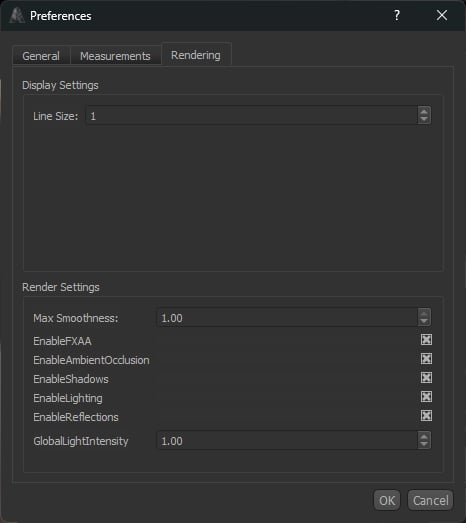
Display Settings
Line Size
Line Size
Controls the thickness of lines displayed throughout the 3D Work Area.
Render Settings
These options allow you to adjust the balance between visual quality and rendering performance.Max Smoothness
Max Smoothness
Controls the maximum amount of surface smoothing used when rendering supported objects.Higher values can produce smoother-looking surfaces but may require additional rendering resources.
Enable FXAA
Enable FXAA
Enables Fast Approximate Anti-Aliasing (FXAA).FXAA reduces the appearance of jagged edges in the rendered scene with a relatively small performance cost.
Enable Ambient Occlusion
Enable Ambient Occlusion
Enables ambient occlusion, which adds subtle shading where surfaces meet or are close together.This provides additional depth and makes the shape of objects easier to perceive.
Enable Shadows
Enable Shadows
Enables real-time shadows in the Work Area.
Enable Lighting
Enable Lighting
Enables lighting calculations when rendering the scene.
Enable Reflections
Enable Reflections
Enables reflections on supported materials and surfaces.
Global Light Intensity
Global Light Intensity
Controls the overall intensity of the lighting in the Work Area.Increase this value to make the scene brighter or decrease it for softer lighting.
Rendering preferences affect how your project is displayed in Armorsmith Designer. They do not change the dimensions or geometry of your costume pieces.