
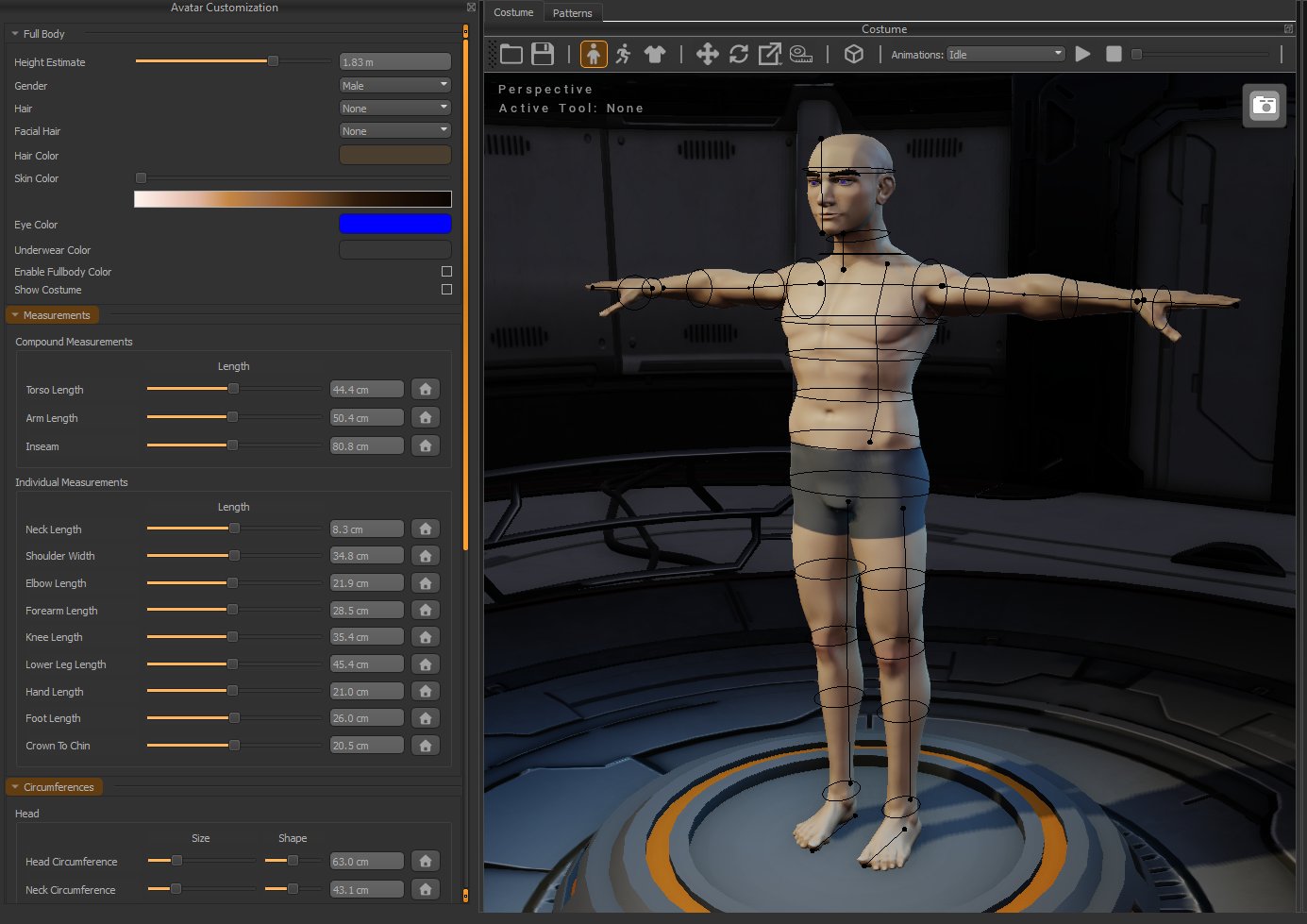
Full Body
The Full Body section contains the general settings for your avatar, including height, gender, appearance, and display options.Height Estimate
Height Estimate
Sets the approximate overall height of the avatar.Adjusting the height estimate scales the avatar while maintaining its current body proportions.
Gender
Gender
Selects the base body type used by the avatar.Changing the gender will update the underlying avatar proportions and available appearance options.
Changing the gender will reset your measurements back to the baseline.
Hair
Hair
Selects the hairstyle displayed on the avatar.
Facial Hair
Facial Hair
Selects the facial hair displayed on the avatar.
Hair Color
Hair Color
Sets the color of the avatar’s hair and facial hair.
Skin Color
Skin Color
Adjusts the skin tone of the avatar.
Eye Color
Eye Color
Sets the eye color of the avatar.
Underwear Color
Underwear Color
Sets the color of the avatar’s underwear.
Enable Fullbody Color
Enable Fullbody Color
Overrides the avatar’s individual colors with a single full-body color.
Show Costume
Show Costume
Controls whether currently loaded costume pieces are displayed while editing the avatar.Disable this option when you want an unobstructed view of the avatar and its measurements.
Measurements
The Measurements section allows you to fine-tune the dimensions and proportions of the avatar. Measurement guides are displayed directly on the avatar in the Work Area, making it easier to see which part of the body is affected by each adjustment. When you mouse over a measurement it will display that measurement in orange. Make note of where the beginning and end of the line are as that is where you should measure for these values. Measurements are divided into Compound Measurements and Individual Measurements.Compound Measurements
Compound measurements represent larger body dimensions that depend on several parts of the avatar.Torso Length
Torso Length
Adjusts the overall length of the torso.
Arm Length
Arm Length
Adjusts the total length of the arm while maintaining the relationship between the upper arm and forearm. This means that if you edit this measurement it will also change the upper arm and forearm measurements
Inseam
Inseam
Adjusts the total inside leg length while maintaining the relationship between the knee length and lower leg length. This means that if you edit this measurement it will also change the knee length and lower leg measurements
Individual Measurements
Individual measurements provide more precise control over specific parts of the avatar. These include measurements such as:- Neck Length
- Shoulder Width
- Elbow Length
- Forearm Length
- Knee Length
- Lower Leg Length
- Hand Length
- Foot Length
- Crown to Chin
Reset Measurement
The Reset button beside a measurement restores that measurement to its default value. This can be useful if you want to undo an individual proportion change without resetting the entire avatar.Circumferences
The Circumferences section controls measurements around the body, such as the head, neck, chest, waist, arms, and legs. Each circumference may provide two controls: Size changes the overall circumference of that part of the body. Shape changes how the circumference is distributed without significantly changing its overall size. For example, two people may have the same chest circumference while having different chest shapes. The Shape control allows the avatar to better represent these differences.- Head
- Neck
- Neck Base
- Chest
- Underbust
- Waist
- High Hip
- Thigh
- Knee
- Calf
- Ankle
- Shoulder
- Bicep
- Forearm
- Wrist