> ## Documentation Index
> Fetch the complete documentation index at: https://armorsmith-designer.mintlify.site/llms.txt
> Use this file to discover all available pages before exploring further.
# View and attach your loaded objects in the Workspace Panel
> Learn how to use the Workspace panel to view, import, attach and delete your loaded model files.
# Workspaces Panel
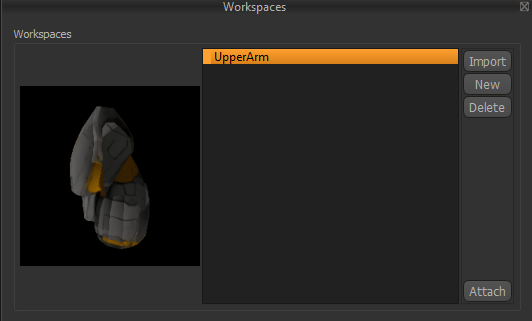
The **Workspaces Panel** manages the imported files of armor parts called **Workspaces**. Workspaces contain the imported 3D model, materials, and unfolded patterns generated from that model. Users can also create blank workspaces and then create their own custom patterns for drafting their own armor from scratch.
A preview of the currently selected workspace is displayed on the left side of the panel, while the available workspaces are listed on the right.
 ***
## Workspace Preview
The preview window displays a thumbnail of the currently selected workspace, allowing you to quickly identify its contents before attaching it to your project.
***
## Workspace List
The **Workspace List** displays all available workspaces that have been imported into Armorsmith Designer.
Select a workspace to view its preview and enable the available workspace actions.
***
## Import
The **Import** button adds a new workspace to the Workspace Library.
***
## New
The **New** button creates a new blank workspace from the current selection.
Use this feature if you want to draft your own patterns for a costume piece.
***
## Delete
The **Delete** button permanently removes the selected workspace from the Workspace Library.
Deleting a workspace removes it from the library. It will also delete any attachments that are connected to that workspace.
***
## Attach
The **Attach** button will allow you to attach the part on to the Avatar. A ghosted version of the part will follow the mouse around until the User clicks on an **Attachment Point**.
Once attached, the attached part and can be moved, rotated, scaled, or edited.
***
***
## Workspace Preview
The preview window displays a thumbnail of the currently selected workspace, allowing you to quickly identify its contents before attaching it to your project.
***
## Workspace List
The **Workspace List** displays all available workspaces that have been imported into Armorsmith Designer.
Select a workspace to view its preview and enable the available workspace actions.
***
## Import
The **Import** button adds a new workspace to the Workspace Library.
***
## New
The **New** button creates a new blank workspace from the current selection.
Use this feature if you want to draft your own patterns for a costume piece.
***
## Delete
The **Delete** button permanently removes the selected workspace from the Workspace Library.
Deleting a workspace removes it from the library. It will also delete any attachments that are connected to that workspace.
***
## Attach
The **Attach** button will allow you to attach the part on to the Avatar. A ghosted version of the part will follow the mouse around until the User clicks on an **Attachment Point**.
Once attached, the attached part and can be moved, rotated, scaled, or edited.
***