> ## Documentation Index
> Fetch the complete documentation index at: https://armorsmith-designer.mintlify.site/llms.txt
> Use this file to discover all available pages before exploring further.

# Navigate the Armorsmith Designer Costume Viewport Controls

> Master every mouse control for rotating, panning, zooming, and selecting objects in the Armorsmith Designer 3D Viewport, plus practical workflow tips.

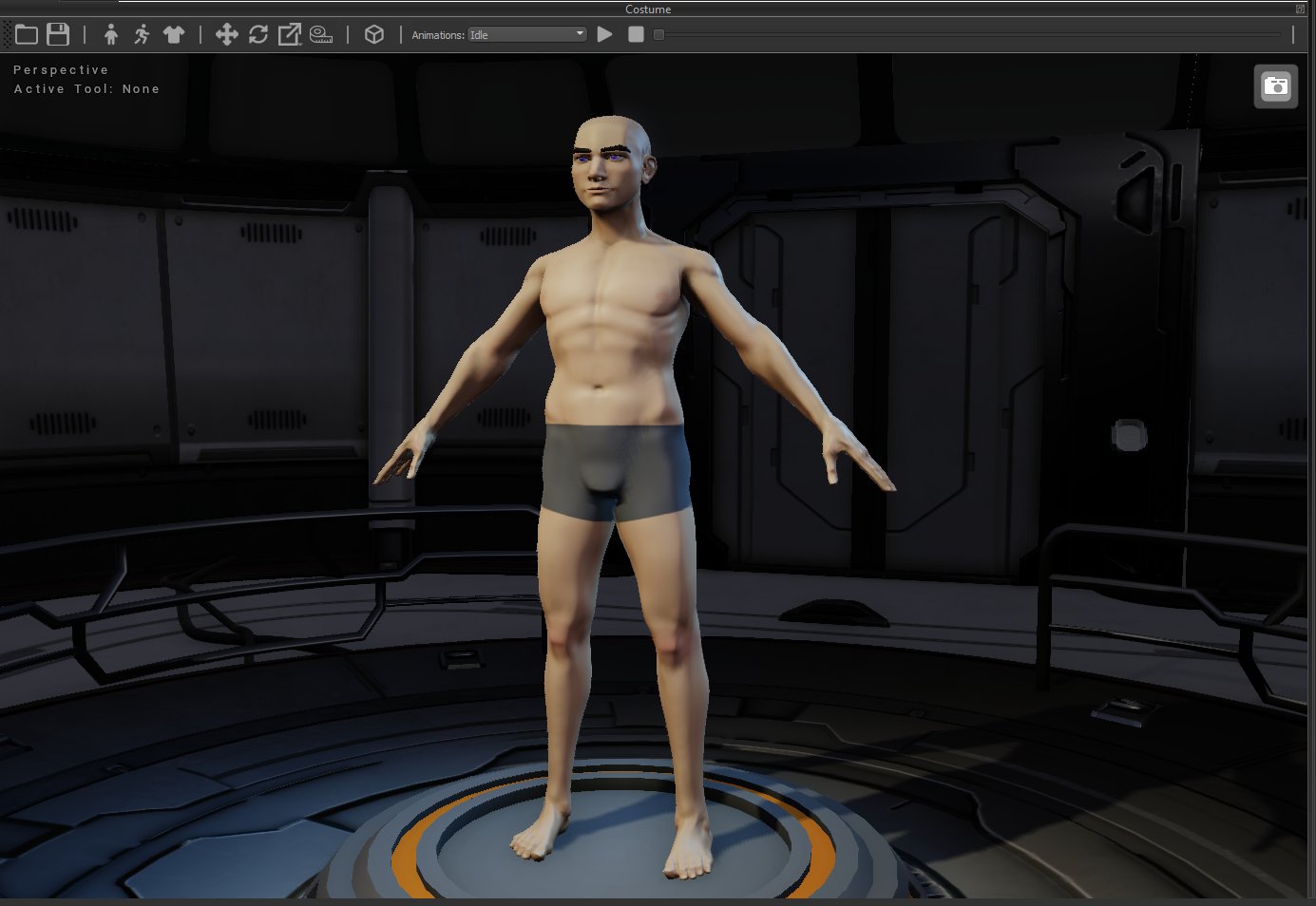
The Costume Viewport is where you spend most of your time in Armorsmith Designer — positioning costume parts, checking fit against your avatar, and inspecting how pieces relate to each other in three dimensions. Learning the navigation controls thoroughly means you can focus on the design itself rather than fighting the camera.

<Frame>
  <img src="https://mintcdn.com/armorsmith-designer/RvosOhnkTkEqoVFN/images/CostumeViewport.png?fit=max&auto=format&n=RvosOhnkTkEqoVFN&q=85&s=cbcbe9a168dbb9fb5a162e5c47cc5b78" alt="Image" width="1385" height="954" data-path="images/CostumeViewport.png" />
</Frame>

## Toolbar Buttons

<AccordionGroup>
  <Accordion title="Open" icon="folder">
    <div style={{display:"flex", alignItems:"center", gap:"16px"}}>
      <img src="https://mintcdn.com/armorsmith-designer/RvosOhnkTkEqoVFN/images/buttons/folder.png?fit=max&auto=format&n=RvosOhnkTkEqoVFN&q=85&s=822e212d44ecf654c9fcd24bac612fd4" width="64" data-path="images/buttons/folder.png" />

      <div>
        Opens a costume file
      </div>
    </div>
  </Accordion>

  <Accordion title="Save" icon="floppy-disk">
    <div style={{display:"flex", alignItems:"center", gap:"16px"}}>
      <img src="https://mintcdn.com/armorsmith-designer/RvosOhnkTkEqoVFN/images/buttons/save.png?fit=max&auto=format&n=RvosOhnkTkEqoVFN&q=85&s=5c8894585e8967c71038e9dfc2270074" width="64" data-path="images/buttons/save.png" />

      <div>
        Saves the current costume in the work area
      </div>
    </div>
  </Accordion>

  <Accordion title="Edit Avatar" icon="person" icontype="solid">
    <div style={{display:"flex", alignItems:"center", gap:"16px"}}>
      <img src="https://mintcdn.com/armorsmith-designer/EnPap3k27_cyudXi/images/buttons/avatar.png?fit=max&auto=format&n=EnPap3k27_cyudXi&q=85&s=780d923014bb0d0221dc08d1ebd9b245" width="64" data-path="images/buttons/avatar.png" />

      <div>
        Enter / Exits the edit avatar mode. This opens the edit avatar panel to the left of the work area.
      </div>
    </div>
  </Accordion>

  <Accordion title="Edit Pose" icon="person-running" icontype="solid">
    <div style={{display:"flex", alignItems:"center", gap:"16px"}}>
      <img src="https://mintcdn.com/armorsmith-designer/EnPap3k27_cyudXi/images/buttons/person-running-solid.png?fit=max&auto=format&n=EnPap3k27_cyudXi&q=85&s=dced681c3a121fa6c9c01cb9ca8e48a5" width="64" data-path="images/buttons/person-running-solid.png" />

      <div>
        Enter / Exits the edit pose mode. This allows the user to edit the posing of the avatar.
      </div>
    </div>
  </Accordion>

  <Accordion title="Fit Checker" icon="shirt" icontype="solid">
    <div style={{display:"flex", alignItems:"center", gap:"16px"}}>
      <img src="https://mintcdn.com/armorsmith-designer/E1xs2rrNgPOXJ4GC/images/buttons/shirt-solid.png?fit=max&auto=format&n=E1xs2rrNgPOXJ4GC&q=85&s=0ec4815858ad8f9275d8b84080e90a88" width="64" data-path="images/buttons/shirt-solid.png" />

      <div>
        Enter / Exits the fit checker mode. This allows the user to check the fit of all of their parts. It renders a heatmap based on how far each vertex is away from the avatar.
      </div>
    </div>
  </Accordion>

  <Accordion title="Translate" icon="arrows-up-down-left-right">
    <div style={{display:"flex", alignItems:"center", gap:"16px"}}>
      <img src="https://mintcdn.com/armorsmith-designer/mjeiDCQk8OfBCnTA/images/buttons/move-option_.png?fit=max&auto=format&n=mjeiDCQk8OfBCnTA&q=85&s=41afc1b41611e9e588b8987a46287d7a" width="64" data-path="images/buttons/move-option_.png" />

      <div>
        Activates the **Translate Tool**, allowing the selected objects to be repositioned within the Work Area.

        For more information, see **Translate Tool**.
      </div>
    </div>
  </Accordion>

  <Accordion title="Rotate" icon="rotate" icontype="solid">
    <div style={{display:"flex", alignItems:"center", gap:"16px"}}>
      <img src="https://mintcdn.com/armorsmith-designer/WcePd05KaTKn0IFG/images/buttons/rotate.png?fit=max&auto=format&n=WcePd05KaTKn0IFG&q=85&s=c9139a30d1dbaab37a02b0894b563ed2" width="64" data-path="images/buttons/rotate.png" />

      <div>
        Activates the **Rotation Tool**, allowing the selected objects to be rotated within the Work Area.

        For more information, see **Rotation Tool**.
      </div>
    </div>
  </Accordion>

  <Accordion title="Scale" icon="arrow-up-right-from-square">
    <div style={{display:"flex", alignItems:"center", gap:"16px"}}>
      <img src="https://mintcdn.com/armorsmith-designer/RvosOhnkTkEqoVFN/images/buttons/scale-symbol-(1).png?fit=max&auto=format&n=RvosOhnkTkEqoVFN&q=85&s=5d33172abc7dc828c1ec5dfe6b4a3474" width="64" data-path="images/buttons/scale-symbol-(1).png" />

      <div>
        Activates the **Scale Tool**, allowing the selected objects to be scaled within the Work Area.

        For more information, see **Scale Tool**.
      </div>
    </div>
  </Accordion>

  <Accordion title="Measure" icon="ruler">
    <div style={{display:"flex", alignItems:"center", gap:"16px"}}>
      <img src="https://mintcdn.com/armorsmith-designer/e849KmkejJm9prmM/images/buttons/ruler2.png?fit=max&auto=format&n=e849KmkejJm9prmM&q=85&s=27bf2b8ba51d349baae6336cf87f84d7" width="64" data-path="images/buttons/ruler2.png" />

      <div>
        Activates the **Measurement Tool**, allowing the user to measure points within the Work Area.

        For more information, see **Measurement Tool**.
      </div>
    </div>
  </Accordion>

  <Accordion title="Free Form Deformation" icon="cube">
    <div style={{display:"flex", alignItems:"center", gap:"16px"}}>
      <img src="https://mintcdn.com/armorsmith-designer/e849KmkejJm9prmM/images/buttons/FFD.png?fit=max&auto=format&n=e849KmkejJm9prmM&q=85&s=41537b2f65ca0bfac46f01d845febd55" width="64" data-path="images/buttons/FFD.png" />

      <div>
        Activates the **Free Form Deformation Tool**, allowing the selected objects to be deformed with a lattice cage.

        For more information, see **Free Form Deformation Tool**.
      </div>
    </div>
  </Accordion>

  <Accordion title="Animation Selector" icon="play">
    Select an animation from the drop down list which you would like to test out on the Avatar. If you have any suggestions for more animations please contact us on the website. wwww\.armorsmithdesigner.com
  </Accordion>

  <Accordion title="Play / Pause Animation" icon="play">
    <div style={{display:"flex", alignItems:"center", gap:"16px"}}>
      <img src="https://mintcdn.com/armorsmith-designer/f2B9qVawzzugyXJI/images/buttons/play-solid.png?fit=max&auto=format&n=f2B9qVawzzugyXJI&q=85&s=f534523fb14f647c3434f52fff6c9cdb" width="64" data-path="images/buttons/play-solid.png" />

      <div>
        Plays or pauses the currently animation selected in the animation selector.
      </div>
    </div>
  </Accordion>

  <Accordion title="Stop Animation" icon="stop">
    <div style={{display:"flex", alignItems:"center", gap:"16px"}}>
      <img src="https://mintcdn.com/armorsmith-designer/RvosOhnkTkEqoVFN/images/buttons/stop-solid.png?fit=max&auto=format&n=RvosOhnkTkEqoVFN&q=85&s=d295337ae19e27d468213941fe64029c" width="64" data-path="images/buttons/stop-solid.png" />

      <div>
        Stops the currently playing animation.
      </div>
    </div>
  </Accordion>

  <Accordion title="Animation Scrubber">
    Use the animation scrubber to manually move through the animation timeline. First, pause the animation, then drag the scrubber along the timeline to move forward or backward through the animation.
  </Accordion>
</AccordionGroup>

## Navigation Controls

<Note>
  Mouse navigation in the viewport requires the cursor to be **inside the viewport area**. If scrolling or dragging doesn't seem to be working, click once inside the viewport to make sure it has focus.
</Note>

| Action                         | Input               | Notes                                                                                                                                        |
| ------------------------------ | ------------------- | -------------------------------------------------------------------------------------------------------------------------------------------- |
| **Rotate view**                | Right-click + drag  | Orbits the camera around the current pivot point. Hold and sweep left/right to spin around the avatar; sweep up/down to tilt.                |
| **Pan view**                   | Middle-click + drag | Slides the camera parallel to the screen. Useful for moving your focus to a different part of the avatar without changing the viewing angle. |
| **Zoom**                       | Scroll wheel        | Scrolling toward you zooms in; scrolling away zooms out. The zoom centers on your current mouse position.                                    |
| **Select object**              | Left-click          | Clicks on a mesh in the viewport to select it and populate the Property Grid with its details. Click empty space to deselect.                |
| **Zoom selected object**       | **Z**               | Centers and zooms the camera to fit the currently selected object neatly in the viewport.                                                    |
| **Reset / frame all**          | **Shift-Z**         | Pulls back to show the entire scene — avatar and all attached parts — within the viewport.                                                   |
| **Front view**                 | **F**               | Snaps the camera to a straight-on front view.                                                                                                |
| **Side view**                  | **L**               | Snaps the camera to a right-side view.                                                                                                       |
| **Perspective / Ortho toggle** | **P**               | Switches between perspective (natural depth) and orthographic (no depth distortion) projection.                                              |

<Tip>
  **Zooming in on small parts.** Scroll wheel zoom can feel imprecise when you're trying to get close to a small component like a buckle or strap attachment point. Try this instead: left-click the part to select it, then press **Z** to frame it perfectly. From there, use small scroll-wheel nudges to dial in your distance.
</Tip>

<Tip>
  **Checking fit from multiple angles.** It's easy to get a piece that looks right from the front but clips through the avatar from the side. Develop a habit of rotating the view — right-click drag — to inspect every attachment from at least three angles before finalising the position.
</Tip>

<Tip>
  **Switching to orthographic for alignment.** When you need to line up two pieces precisely (for example, making sure a shoulder plate sits symmetrically), switch to an orthographic front or top view with **P** and use the Property Grid to type in exact position values. Perspective distortion can make eyeballing alignment deceptive.
</Tip>

<Tip>
  **Recovering a lost view.** If you've panned or zoomed to the point where you can't see anything useful, press **Shift-Z** to frame everything in the scene and get your bearings back instantly.
</Tip>