> ## Documentation Index
> Fetch the complete documentation index at: https://armorsmith-designer.mintlify.site/llms.txt
> Use this file to discover all available pages before exploring further.
# Edit Object Properties with the Armorsmith Property Grid
> Learn how to use the Transform panel to view and precisely edit the position, rotation, and scale of any selected object.
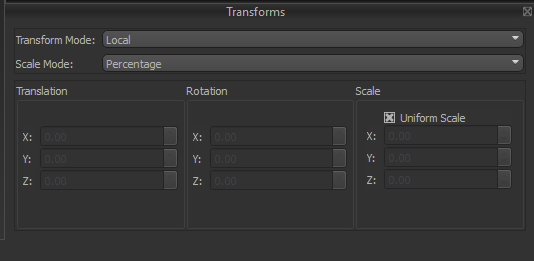
The **Transform Panel** provides precise control over the position, rotation, and scale of the selected object. While the transform gizmos in the Work Area are ideal for interactive editing, the Transform Panel allows exact numeric values to be entered for greater accuracy and repeatability.
Armorsmith Designer uses a Y up coordinate system and Metric units by default
 ***
## Transform Mode
The **Transform Mode** determines which coordinate system is used when moving, rotating, and scaling the selected object.
Applies transformations relative to the object's own orientation. As an object rotates, its local X, Y, and Z axes rotate with it, making this mode ideal for editing individual parts in their own coordinate space.
Applies transformations relative to the global coordinate system. The world axes remain fixed regardless of the object's orientation, making it easier to align objects consistently throughout the project.
## Scale Mode
The **Scale Mode** determines how values entered into the Scale section are interpreted.
Scale values are entered as percentages relative to the object's original size. A value of **100%** represents the original dimensions, while values below or above 100% decrease or increase the size proportionally.
Scale values are entered using real-world dimensions. Rather than specifying a percentage, the object is resized so its dimensions match the values entered for each axis.
## Translation
The **Translation** section controls the position of the selected object within the Work Area.
| Field | Description |
| ----- | ---------------------------------- |
| **X** | Moves the object along the X axis. |
| **Y** | Moves the object along the Y axis. |
| **Z** | Moves the object along the Z axis. |
The values shown represent the object's current position using the selected **Transform Mode**.
## Rotation
The **Rotation** section controls the orientation of the selected object.
| Field | Description |
| ----- | ------------------------------------- |
| **X** | Rotates the object around the X axis. |
| **Y** | Rotates the object around the Y axis. |
| **Z** | Rotates the object around the Z axis. |
Rotation values are measured in degrees.
## Scale
The **Scale** section controls the size of the selected object.
| Field | Description |
| ----- | ---------------------------- |
| **X** | Adjusts the object's width. |
| **Y** | Adjusts the object's height. |
| **Z** | Adjusts the object's depth. |
The values entered are interpreted according to the selected **Scale Mode**.
### Uniform Scale
When **Uniform Scale** is enabled, changing one scale value automatically updates the remaining axes to preserve the object's proportions.
When disabled, each axis can be edited independently, allowing the object to be stretched or compressed in individual directions.
***
* Use **Local Transform Mode** when adjusting parts that have already been rotated into position.
* Use **World Transform Mode** when aligning multiple objects or positioning them relative to the overall project.
* Enable **Uniform Scale** when resizing objects to maintain their original proportions.
* Disable **Uniform Scale** when intentionally stretching or compressing an object along a specific axis.
* For quick interactive adjustments, use the transform gizmos in the Work Area. Use the Transform Panel when precise numeric values are required.
***
## Transform Mode
The **Transform Mode** determines which coordinate system is used when moving, rotating, and scaling the selected object.
Applies transformations relative to the object's own orientation. As an object rotates, its local X, Y, and Z axes rotate with it, making this mode ideal for editing individual parts in their own coordinate space.
Applies transformations relative to the global coordinate system. The world axes remain fixed regardless of the object's orientation, making it easier to align objects consistently throughout the project.
## Scale Mode
The **Scale Mode** determines how values entered into the Scale section are interpreted.
Scale values are entered as percentages relative to the object's original size. A value of **100%** represents the original dimensions, while values below or above 100% decrease or increase the size proportionally.
Scale values are entered using real-world dimensions. Rather than specifying a percentage, the object is resized so its dimensions match the values entered for each axis.
## Translation
The **Translation** section controls the position of the selected object within the Work Area.
| Field | Description |
| ----- | ---------------------------------- |
| **X** | Moves the object along the X axis. |
| **Y** | Moves the object along the Y axis. |
| **Z** | Moves the object along the Z axis. |
The values shown represent the object's current position using the selected **Transform Mode**.
## Rotation
The **Rotation** section controls the orientation of the selected object.
| Field | Description |
| ----- | ------------------------------------- |
| **X** | Rotates the object around the X axis. |
| **Y** | Rotates the object around the Y axis. |
| **Z** | Rotates the object around the Z axis. |
Rotation values are measured in degrees.
## Scale
The **Scale** section controls the size of the selected object.
| Field | Description |
| ----- | ---------------------------- |
| **X** | Adjusts the object's width. |
| **Y** | Adjusts the object's height. |
| **Z** | Adjusts the object's depth. |
The values entered are interpreted according to the selected **Scale Mode**.
### Uniform Scale
When **Uniform Scale** is enabled, changing one scale value automatically updates the remaining axes to preserve the object's proportions.
When disabled, each axis can be edited independently, allowing the object to be stretched or compressed in individual directions.
***
* Use **Local Transform Mode** when adjusting parts that have already been rotated into position.
* Use **World Transform Mode** when aligning multiple objects or positioning them relative to the overall project.
* Enable **Uniform Scale** when resizing objects to maintain their original proportions.
* Disable **Uniform Scale** when intentionally stretching or compressing an object along a specific axis.
* For quick interactive adjustments, use the transform gizmos in the Work Area. Use the Transform Panel when precise numeric values are required.